What follows is a poorly formatted write up of the process of trying to get product information out of New World. I succeeded! A lot of it is trying to simplify the process. You don’t need to understand it. The end goal, is to scrape grocery store sites to list products by a custom filter – e.g. cheapest protein.
Intro
It’s hard to kick the habit that I don’t want the cheapest, I want the better quality. I do want the cheapest. But sometimes the cheapest isn’t actually the cheapest. Supermarket websites allow you to sort products by cheapest-per. Cheapest per kilo, cheapest per can. What about cheapest per energy? Cheapest per protein? Cheapest per overall nutritional score?
It’s easy to think that they don’t do this because it would be too hard. Well. Let’s find out. In this initial intro, I’m going to look – manually – at New World. If it proves to be successful, then I’ll try to make it more generic, and eventually make something anyone can use.
But first – how does the internet work?
The internet
This isn’t a course on web programming, and I don’t think I could adequately do one that isn’t better covered by someone else’s YouTube video, but a very brief explainer:
Imagine that you want to send a letter to someone, asking for some information. You need:
Their address
A way of asking them to look something up
A way of telling them what to look up
A way of telling them how you want that information
A way of them sending it back to you
Intuitively, this isn’t hard (although I doubt many people have sent letters now). The address – well that’s easy:
Mr H. Potter
The Cupboard under the Stairs
4 Privet Drive
Little Whinging
Surrey
A format easily understood. You know who you’re sending to, and where they’re going to be. In the internet, this is a URL1 – the thing you type to go to google.com or, in this case, https://www.newworld.co.nz/
That’s the address part. Let’s jump to #5 – a return address. Well, either in your letter you put a return address on the top right, or you include a SAE – Stamped & Addressed Envelope that they can just pop the response in and send back. For now, that’s a close enough analogy2
Now #2-4. Telling someone to look something up, what to look up, and what format you want it in. To a native speaker this is really easy:
“Please could you give me a list of all your flours, and their costs, and send them back in an ordered list?”
In English, we have a fixed set of words that describe “Please give me”. The internet is no different! The key words for today are:
GET (please give me)
POST (take this and remember it)
PUT (take this update and remember it in place of a previous one)
In this case, we want to GET. Then we say what we want to GET – generally people only have a fixed list of things they can GET. After all, you wouldn’t expect a flour shop to be able to give you a list of all their washing machines – at least, not a useful list.
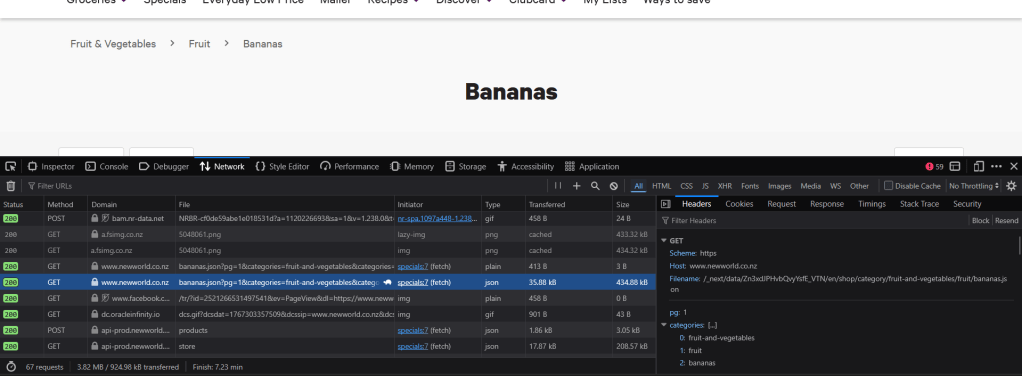
This is called a route, and you can see it in your web browser again – the path broken by ‘/’, for example, if I go to New World and look for bananas I get:
The route is /shop/category/fruit-and-vegetables/fruit/bananas
After that, we can add extra information, like filtering out certain items, with a ‘?’ and a series of ‘thing’=’value’ pairs. Here that extra information is that we’re asking for page 1 only.
What about the format to send it back? Behind the scenes, your web browser is including the information that it would like the content back in, for example, HTML – the language that web browsers understand, or JSON – a convenient format for computers in general to understand.
Seeing it in practice
There’s a lot of information here, and it’s quite small, but on the right we can see a browser making a GET, to http://www.newworld.co.nz, to a path (filename) that ultimately ends up as /category/fruit-and-vegetables/fruit/bananas. You can try this yourself by opening up your console (usually f12) and moving around websites.
But this is pretty inconvenient – it still involves clicking. I want to know if we can do this automatically. When websites and services have a way of interacting with them, they have something called an “API” – a list of all the ways you can interact with them and what words to use. New World have one, but they don’t release it publicly. Fortunately, because they have a website, it shouldn’t be too hard to figure out. In fact, right here we can see a request to api-prod.newworld.co.nz:
Let’s try poking around. For this, I’m going to use Postman – a tool for interacting with APIs
I wanted to see if there was a good way of getting all products. Finding the right path is a bit hard because the website only lets you navigate by category – so let’s try each category. Is there a way of getting all categories?
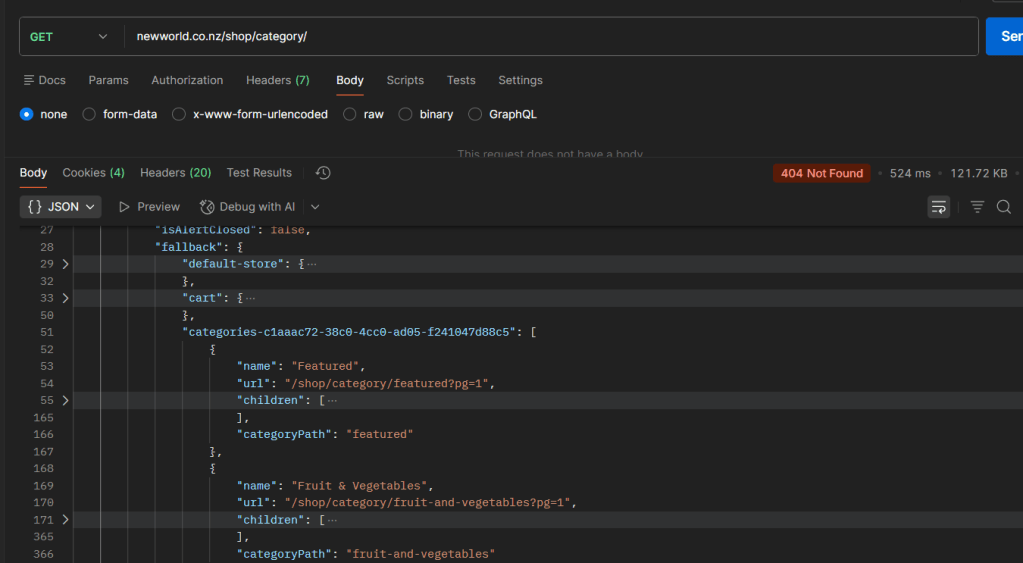
Well. Yes. As it turns out, if you ask for a category page that doesn’t exist, the response helpfully gives you a list of the ones that do exist:
That 404 in red is a special number that means “The thing you were looking for doesn’t exist”. But then in the “letter” (in the previous analogy) that was sent back, we’ve helpfully been told all the categories that do exist – here you can see “Featured” and “Fruit & Vegetables”. It’s also telling us how to access them (the “url” field).
Picking out a particular category, it turns out that you have to chase down multiple levels. I’ve ended up back at bananas:
A result! With a list of bananas. The results list is actually quite useful – it gives you all the information you expect to see, including cost and cost per unit – as well as the unit (kilos in this case). But that’s not enough – we need nutritional information!
Success! Unfortunately – there’s no nutritional information for bananas. A slight snag. Turns out bananas weren’t a good example. What is? What else? Pie!
Pie comes through
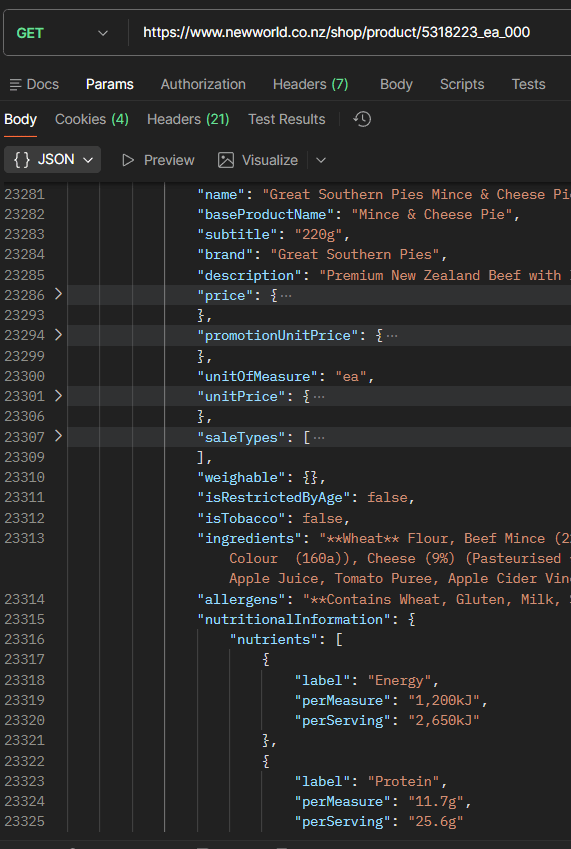
I’ve cheated slightly to go and get an individual pie from the new world website. It’s this Great Southern Pie. And here it is, a pie in all its glory – nutritional information and all:
Cleaning up
This is all quite messy. There must be a better way, right? Well yes. Going back to the page inspection, there are calls to api-prod.newworld.co.nz. That sounds much more promising!
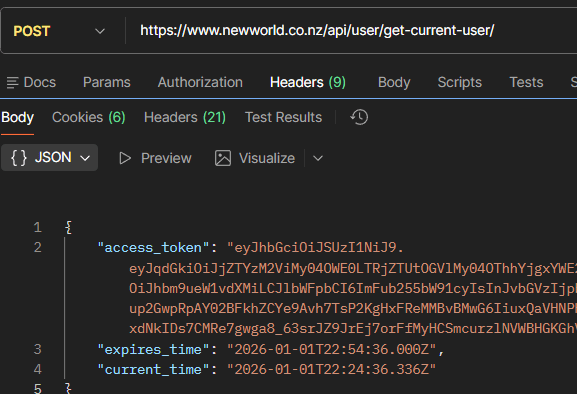
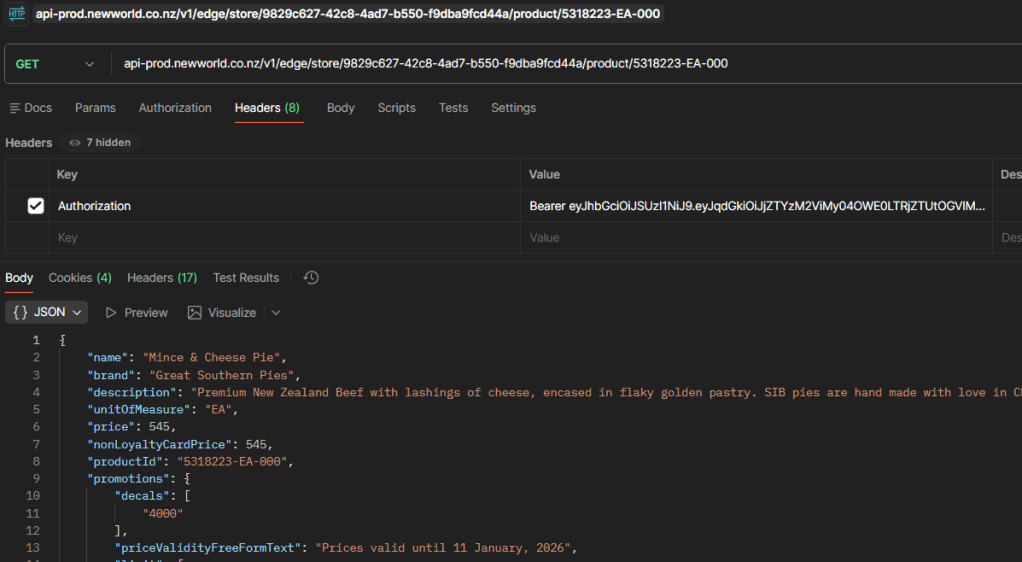
This API needs us to identify ourselves. Fortunately, our web browser has to do this anyway and the calls to it are nice a clear. First, get simply get current user, which sends us back an access token:
Then we include that token in our new requests to the api:
Much faster, much cleaner. One small detail is that we need to tell the api (at least this one) which store we’re looking at. The Cromwell store is “9829c627-42c8-4ad7-b550-f9dba9fcd44a”. A list of stores comes back from the “api-prod.newworld.co.nz/v1/edge/store/” address.
Summary
Now I have the beginnings of a way to access product information programmatically, I can start to make a computer do all this work for me. From there – it’s a case of trying it out for new grocery stores, too.
Footnotes
Ackshually it’s not that simple. But for now – yes it is. ↩︎



 Eating cheap
Leave a comment